Showing posts with label Ubuntu. Show all posts

Monday, December 07, 2009

IP Conflict Detection on Ubuntu

One thing that drives me crazy as a consultant is going to sites and acquiring a duplicate IP.  Windows tells you there is a conflict.  Ubuntu does not unless you install some additional software - IPwatchD.

There are 2 ways to install IPwatchD.  Passive mode or active mode.  Passive mode just logs packets, active mode uses Gratuitous Arp and notifies you of a problem.

The notification works nicely in 9.10 (as shown).


Here are the steps I followed:

http://www.linuxconfig.org/IPwatchD_an_IP_conflict_detection_tool_for_Linux

I will add some additional info.

The article doesn't say what to do to get the script to run at setup.  It's simple.  In 9.10 there is a file  you can update to run scripts as root after user login.  They are nice enough to provide a sample.

/etc/gdm/PostLogin/Default.sample
# Note: this is a sample and will not be run as is.  Change the name of this
# file to /PostLogin/Default for this script to be run.  This
# script will be run before any setup is run on behalf of the user and is
# useful if you for example need to do some setup to create a home directory
# for the user or something like that.  $HOME, $LOGIN and such will all be
# set appropriately and this script is run as root.


If you don't already use the file, copy the sample it to its final destination and add the login script for IPwatchD:


sudo cp /etc/gdm/PostLogin/Default.sample /etc/gdm/PostLogin/Default
echo /usr/local/sbin/ipwatchd -c /usr/local/etc/ipwatchd.conf | sudo tee -a /etc/gdm/PostLogin/Default

logout and back in or reboot to check the work.

Show running status:

ps aux | grep ipwatchd
You'll see something like:

mikem@mikem-9751L:~$ ps aux | grep ipwatchd 
root     28581  0.0  0.1  12388  4744 ?        Ss   21:58   0:00 /usr/local/sbin/ipwatchd -c /usr/local/etc/ipwatchd.conf
mikem    30234  0.0  0.0   7340   892 pts/0    S+   22:15   0:00 grep ipwatchd

Thursday, December 03, 2009

Compare files easily with Ubuntu

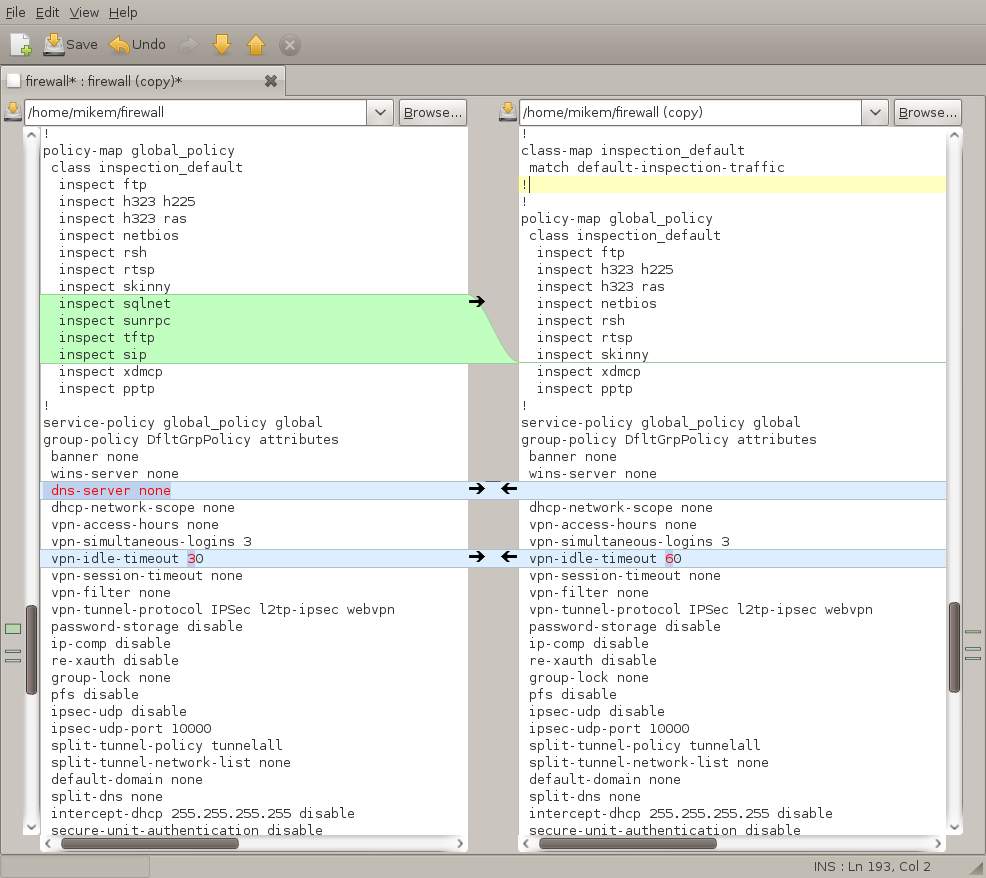
Sometimes you need to compare old configs with new configs.  Instead of comparing the files manually you can run a great program called Meld Diff Viewer.

Just load up both files and you'll see missing lines, changed lines, etc.


To install in Ubuntu:


sudo apt-get install diff 

You'll see the program in Applications - Programming
http://meld.sourceforge.net/


Tuesday, December 01, 2009

Cisco Console software for Linux

There is a nice tool that I use regularly to access consoles on routers, switches, etc.

minicom.  This is a great tool for doing simple console work.

get started with Ubuntu:


sudo apt-get install minicom


Here is a link on configuration and setup.
https://help.ubuntu.com/community/CiscoConsole

Basically, minicom -s for initial configuration.
E - Bps/Par/Bits       : 9600 8N1                                 
F - Hardware Flow Control : No
G - Software Flow Control : No
Save setup as dfl
Ctrl-a f is the break sequence for password recovery
Ctrl-a z for the help menu, say you want to upload files through the console.  I hope you never have to :)

Wednesday, November 25, 2009

Cisco VPN Client on Karmic Koala

This link worked for me to install the Cisco VPN client on Ubuntu 9.10 (64 bit btw).

http://ilapstech.blogspot.com/2009/09/cisco-vpn-client-on-karmic-koala.html

I also have a simple script I run when I need to connect to a client.  The script lists all my profiles and I just type in the name to connect.

I have a folder I place some scripts in.
Assuming you have the client installed in the recommended directories.

code:


cd ~mkdir Tools
cd Tools
gedit vpnconnect
#! /bin/bash
sudo /etc/init.d/vpnclient_init stop
sudo /etc/init.d/vpnclient_init start
ls /etc/opt/cisco-vpnclient/Profiles/
echo -n "Enter VPN Client: "
read -e VPN
sudo vpnclient connect $VPN
! save gedit and close
chmod +x vpnconnect


Create a shortcut to the file if desired.
On the desktop - Right click and create launcher.
Choose Run application in Terminal.
Browse the vpnconnect file you just created.

Should be good to go.

--
If you run updates on Ubuntu, you'll notice a message about a kernel header not loading.  You will need to reinstall the client, no big deal.

I suggest copying the install directory to the cisco-vpnclient directory so you have the files ready to go in case you accidentally delete the install folder.


mkdir /etc/opt/cisco-vpnclient/install
cp -r vpnclient /etc/opt/cisco-vpnclient/install/
cd  /etc/opt/cisco-vpnclient/install/vpnclient/
sudo ./vpn_install

Sunday, November 22, 2009

AnyConnect on 64 bit Ubuntu 9.10


Thanks to a post in the Ubuntu forum I was able to easily install the AnyConnect using the following instruction:
Let me rephrase that.  I was always able to install the client but constantly received a server certificate error.  I tried to import the certificates, but no dice.  These instructions fixed that problem.

Install, or verify installed, the following packages:
1) ia32-libs
2) lib32nss-mdns
3) libcurl3
4) libxml2

Create the directory /usr/local/firefox and create symlinks for the following files: /usr/lib32/libnss3.so, /usr/lib32/libplc4.so, /usr/lib32/libnspr4.so, /usr/lib32/libsmime3.so, and /usr/lib32/nss/libsoftokn3.so.

You may need to reboot or run ldconfig so the symlinked libraries can be found.


Code:

sudo apt-get install ia32-libs lib32nss-mdns libcurl3 libxml2
cd /usr/local
sudo mkdir firefox
cd firefox
sudo ln -s /usr/lib32/libnss3.so
sudo ln -s /usr/lib32/libplc4.so
sudo ln -s /usr/lib32/libnspr4.so
sudo ln -s /usr/lib32/libsmime3.so
sudo ln -s /usr/lib32/nss/libsoftokn3.so
sudo ldconfig

Go to the directory where you have the AnyConnect software
Untar the AnyConnect client file and run


Code:

sudo sh ./vpn_install.sh

The GUI client is automatically installed under Applications -> Internet.